Summary
Over time, performance of every computer degrades. High CPU and RAM usage, heavy startup applications, storage space issues, or aging hardware can all lead to slow performance. Windows provides some built-in tools to diagnose and resolve the problem. Apart from these, you can use third-party tools that can help to gain your system performance. This guide will show you which Windows tools to use and introduce you to reliable third-party software that can help.
If your Windows PC comparatively takes more time to start, application freezes frequently on execution or while opening, browser becomes unresponsive when only a few tabs are open, or the fan makes a loud noise during routine tasks, your system is consuming more resources than it should. The reasons can vary, but common causes are that an application or two is draining your CPU or RAM, low storage space in your system drive, overheating, or compatibility issues with aging hardware.
Windows includes several diagnostic tools to identify and resolve these performance bottlenecks. To make things easy, a few good third-party tools are also available that provide a one-click solution to boost your PC’s performance.
What Are the Available Methods to Find What Is Making Your Windows PC Slow
To investigate the issue and to explore applicable resolution, check these utilities-
1. Check Resource Usage in Task Manager
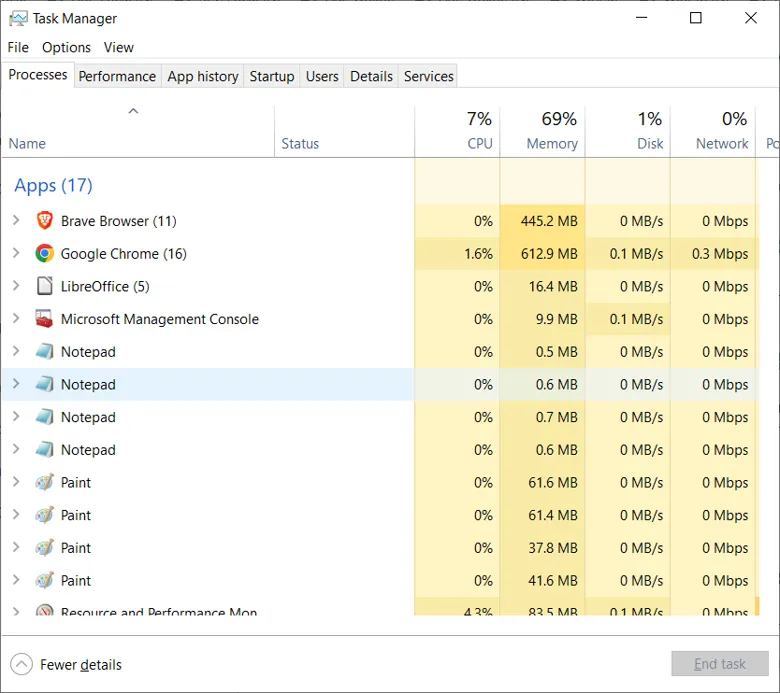
Task Manager is the first place to investigate when your Windows PC becomes slow. It shows running applications, background processes, and how much CPU, memory, disk, and GPU resources they consume.
Follow these steps:
- Press Ctrl + Shift + Esc to open the Task Manager.
- Select the Processes tab.
- Click the CPU column to arrange processes from highest to lowest usage.
- Repeat this for Memory and Disk.
- Look for applications that consistently consume unusually high resources when your PC slows down.
- Open the Performance tab to examine overall system usage.

Here is what the readings can tell you:
| Component |
What to look for |
Possible reason |
| CPU |
Consistently high usage |
Heavy applications or background processes |
| Memory |
RAM almost fully occupied |
Too many applications or insufficient RAM |
| Disk |
Sustained high activity |
Background operations or storage problems |
| GPU |
High usage during routine tasks |
Graphics-heavy applications or driver issues |
Remember that occasional usage spikes are normal. However, if the usage indicator continuously shows high usage, you can end the processes that are consuming the most resources to return your PC to its normal state. Be careful not to terminate security software or unfamiliar Windows processes, as they may be essential for system stability.
2. Identify Applications Running at Startup
Some applications launch automatically with Windows. They are designed to keep running in the background, either hidden or minimized, to complete the desired tasks. At times some resource heavy applications launch at startup, which can inadvertently cause the PC to take longer to become usable after sign-in. Disabling such applications can significantly reduce startup delays and unnecessary background activity.
To identify them:
- Open Task Manager using Ctrl + Shift + Esc.
- Select Startup apps.
- Check the Startup impact column.
- Identify applications marked as High impact that you do not need at startup.
- Right-click an unnecessary application and select Disable.
This can help reduce startup delays and background resource consumption. However, avoid disabling security software, essential drivers, or applications required for your hardware.
3. Use Resource Monitor to Find Hidden Resource Usage
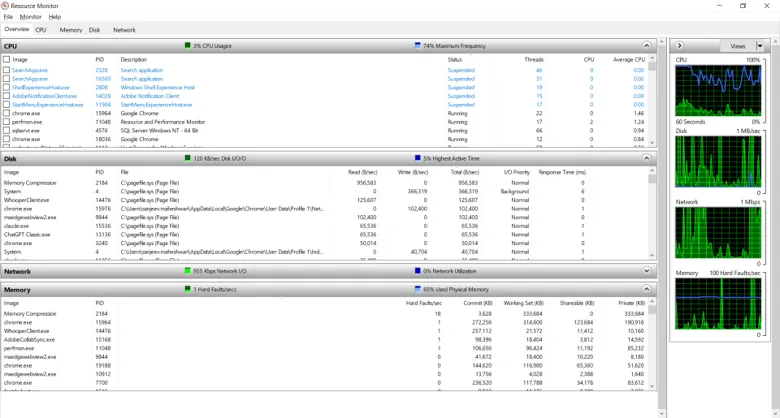
Task Manager provides an overview of system performance, but Resource Monitor offers more detailed information about individual processes and files.
To use it, open Resource Monitor and continuously monitor the files and processes within the CPU, Memory and Disk sections. Ignore short spikes as they are normal, however if high usage remains steady, look for the processes and files involved. You should also check if both Disk and Memory usage are constantly high. When this happens, it usually means RAM utilization is at its maximum, forcing the system to swap data to the hard drive to use virtual memory, which in turn causes high disk usage.
To open it:
- Press Win + R.
- Type resmon and press Enter.
- Explore the CPU, Memory, Disk, and Network tabs.
Resource Monitor helps you investigate which processes are consuming resources and which files or activities are involved.
4. Check Whether Your Browser Is Slowing Down the PC
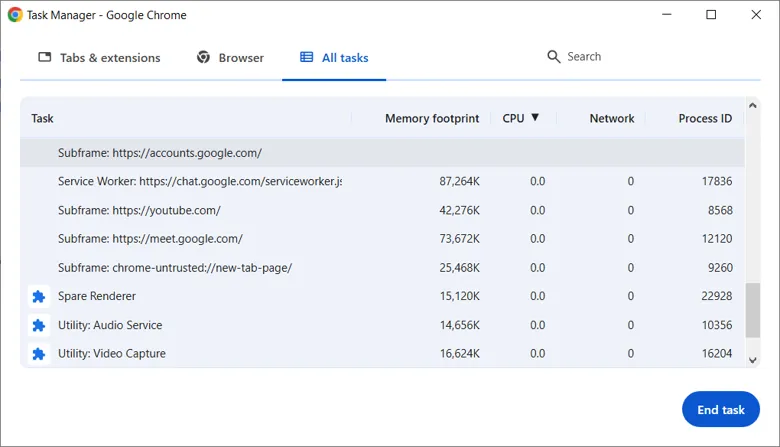
Web browsers can consume considerable RAM and CPU resources, particularly when you keep multiple tabs and extensions running. You can investigate this without closing your entire browser.
In Google Chrome or Microsoft Edge:
- Open the browser.
- Press Shift + Esc.
- Examine the Browser Task Manager.
- Check the memory and CPU usage of individual tabs, extensions, and processes.
- Identify unnecessary resource-heavy tabs or extensions.
If a particular extension consumes excessive resources, disable it temporarily and observe whether performance improves. This is especially useful when your PC becomes slow mainly while browsing the internet.
5. Check Windows Reliability Monitor for Application Errors
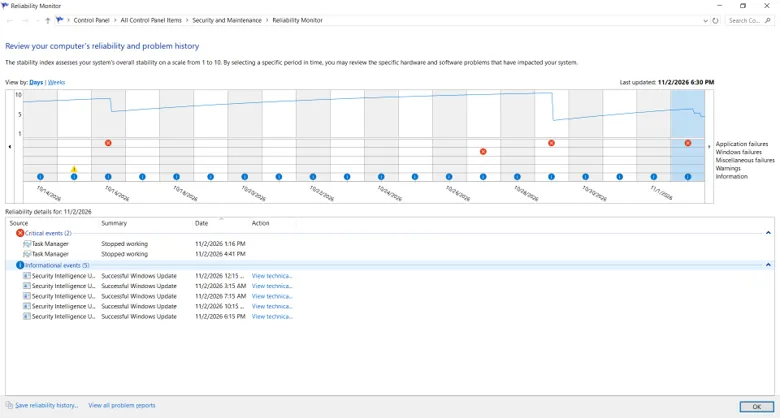
Reliability Monitor is a stability index tool that rates your system’s stability on a scale of 1 to 10. It monitors your system’s hardware and software over a period of days and weeks to record their status. If you are experiencing slow performance, a recent app crash, system error, or hardware failure could be the cause. The Reliability Monitor can help you investigate the root cause of these issues.
To open it:
- Press Win + R
- Type perfmon /rel and press Enter.
- Examine the reliability history.
- Look for red error markers around the dates when performance problems started.
- Select an event to view additional details.
If the same application repeatedly appears in the error history, investigate whether it needs an update, repair, or reinstallation.
Reliability Monitor is particularly helpful when slowdowns occur intermittently rather than continuously.
6. Use Performance Monitor to Track System Activity
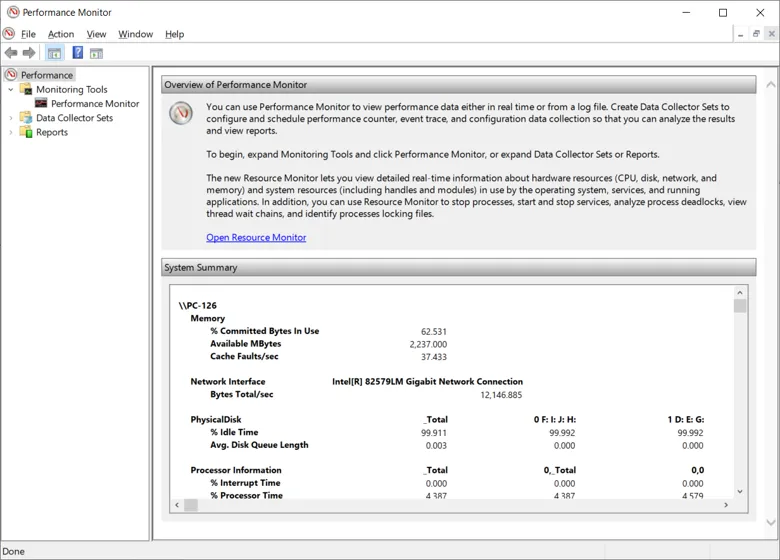
If your PC becomes slow occasionally but works normally when you open Task Manager, you may need to monitor its performance over a longer period. Windows Performance Monitor can track system resources using performance counters.
To open it, search for Performance Monitor in the Windows Start menu.
You can monitor counters related to:
- Processor usage.
- Available memory.
- Physical disk activity and
- Network connection activity.
Unlike a quick Task Manager check, Performance Monitor can help you collect information over time and identify recurring resource bottlenecks.
7. Perform a Clean Boot to Identify Software Conflicts
Just like startup applications, there are services that launch automatically with Windows. Unlike any normal program they run quietly in the background without a user interface. Core Windows functions and other essential components use startup services, though not limited, third-party applications also use startup services when they need a feature or function to execute constantly while Windows is running.
If you suspect a third-party service is causing a slowdown, you can disable it to troubleshoot the issue. Though be cautious, disabling a critical Windows or system service can destabilize your computer.
Use your computer normally and check whether the performance improves. If the slowdown stops, one of the disabled applications or service may be responsible. You can then re-enable them one by one to isolate the exact cause.
To perform one:
- Press Win + R, type msconfig, and press Enter.
- Open the Services tab.
- Select Hide all Microsoft services.
- Select a service and uncheck to Disable it.
- Click on Apply and then on OK
Use your computer normally and check whether the slowdown continues. If performance improves, a disabled application or service may be responsible.
8. Check for Hardware-Related Performance Problems
Not every performance issue comes from software. Your PC’s hardware may also be responsible.
Check these common problems:
- Insufficient RAM: If memory usage frequently approaches its limit, your PC may struggle when running multiple applications.
- Older HDD: Traditional hard drives are slower than SSDs, which can affect boot times and application loading.
- Overheating: Excessive CPU or GPU temperatures can cause thermal throttling, reducing performance to control heat.
- Storage problems: A failing or unhealthy drive can cause slow file access, freezing, and other performance issues.
If your PC becomes slow during gaming or demanding applications, check whether overheating or GPU limitations are involved.
9. Check for Malware and Suspicious Background Processes
Malware can run silently in the background, consuming CPU, memory, and disk resources. Some malicious programs may also launch automatically when Windows starts. Do not assume that every unfamiliar process is malware. Check its name, publisher, and file location before taking action.
10. Use Third-Party Tools to Clean and Optimize Your Windows PC
Windows offers several built-in diagnostic and cleanup tools, but third-party PC maintenance utilities can make routine cleaning easier. They help remove unnecessary files, manage startup applications, clear browser clutter, and perform other maintenance tasks. Here are five tools worth considering.
1. Advanced System Optimizer
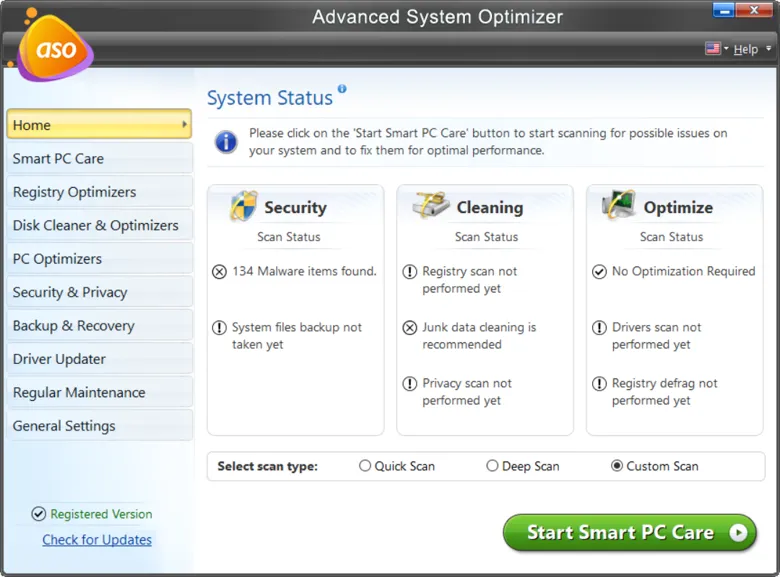
Advanced System Optimizer is our preferred choice for users looking for a thorough PC optimization and cleaning solution. Its Smart PC Care provides an all-round solution for cleaning and optimization, registry repairing, disk degragging, privacy protection, driver updation, and malware cleaning. It also includes dedicated tools for backup, maintenance that includes startup manager and software uninstaller. Its collection of various utilities makes it convenient for handling several PC related tasks from one interface. This program is suitable for both beginners and advanced users.
2. CCleaner
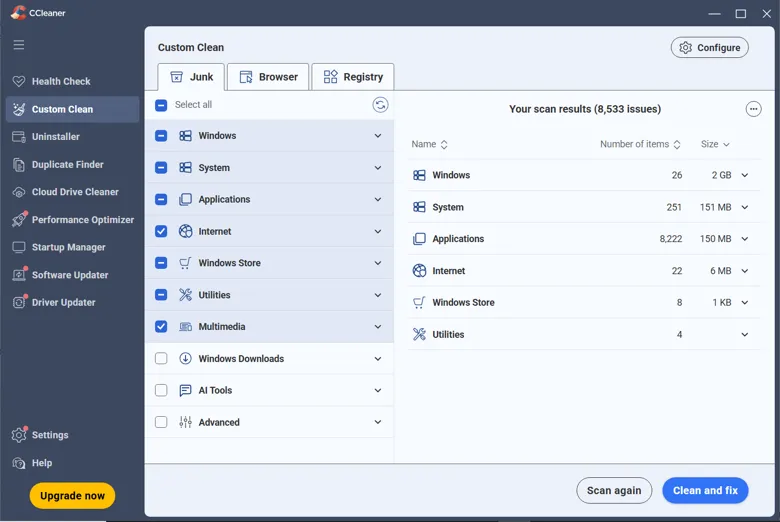
CCleaner is a popular PC cleaning utility that removes temporary files, browser clutter, and other unnecessary data. Its free version provides basic cleaning and privacy features, helping reclaim storage space and manage unwanted files.
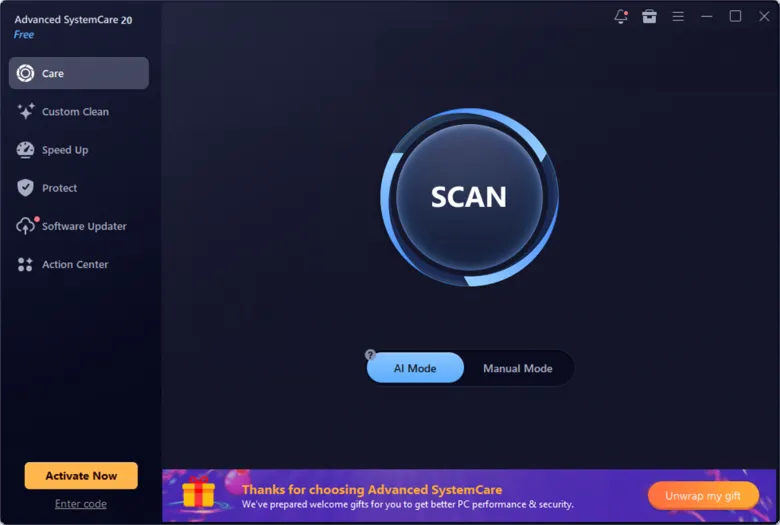
3. IObit Advanced SystemCare
IObit Advanced System Care offers an all-in-one approach to Windows maintenance. Its free version includes junk file cleaning, basic system optimization, and startup management. It is suitable for users who want to perform routine PC maintenance through a simple interface.
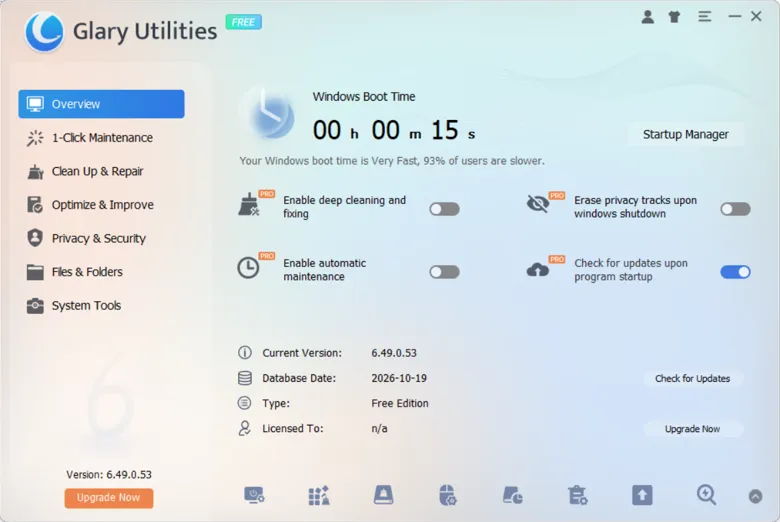
4. Glary Utilities
Glary Utilities combines several maintenance tools in one application. It helps clean junk files, manage startup programs, remove duplicate files, and analyze disk usage. Its collection of utilities makes it useful for users who prefer multiple maintenance options in one place.
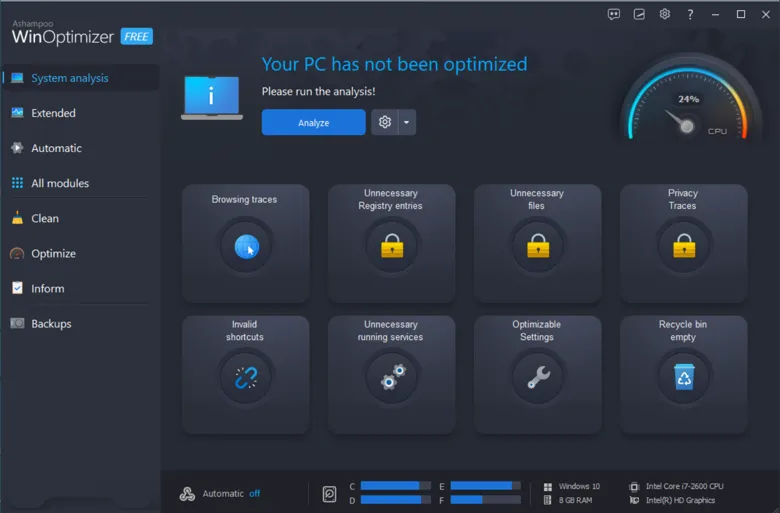
5. Ashampoo WinOptimizer Free
Ashampoo WinOptimizer Free provides tools for cleaning unnecessary files, managing startup applications, and analyzing system performance. It also includes utilities for disk cleanup, privacy management, and Windows customization.
Conclusion
Windows provides several built-in utilities to diagnose the reasons behind PC slowness. Most of the time, users can identify the cause and resolve it. However, if you are not tech savvy, you may find navigating these tools challenging. In such a scenario, using a third-party application is a preferable choice. These tools can take care of your system optimization and maintenance tasks. Among these reliable industry solutions, Advanced System Optimizer is our top recommendation because it combines multiple PC cleaning and optimization utilities in one place.
Frequently Asked Questions
Why is my PC slow even when nothing is open?
Background services, startup applications, Windows updates, malware, and insufficient RAM can slow down your PC even when no visible applications are open.
Can Task Manager identify the exact cause of a slow PC?
Task Manager can identify processes consuming excessive system resources. However, it may not reveal the underlying reason. Tools such as Resource Monitor and Performance Monitor can provide additional diagnostic information.
How do I know whether my slow PC has a hardware or software problem?
Check resource usage, startup applications, background processes, and application errors first. If the slowdown continues after a Clean Boot, investigate hardware factors such as insufficient RAM, storage health, and overheating.
The post How to Find What Is Making Your Windows PC Slow appeared first on Tweak Library.

 Connexion